To stream video from your borescope device into the Aiir platform, we use an HDMI-to-USB capture card as per the recommended hardware setup.
This guide walks you through configuring the capture card settings — specifically for the Mentor Flame borescope using the Magewell USB Capture.
Use the link below to download the official management software for your Magewell capture card.
Make sure to choose the version for your operating system
Plug the capture card into your computer using the USB cable.
Right-click and run the software as Administrator (especially required on Windows).
The capture card should appear in the software interface once connected.
If your video appears stretched or incorrectly framed, use the cropping tools within the software to crop out unnecessary black bars or overlays.
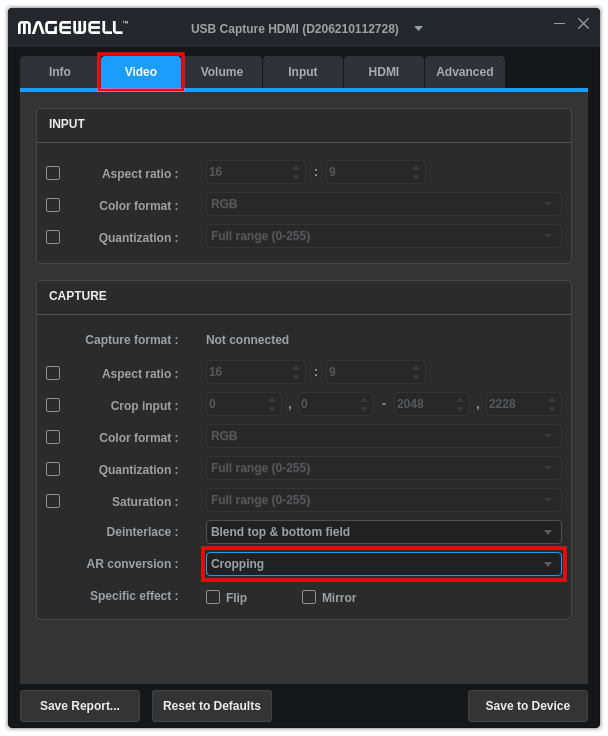
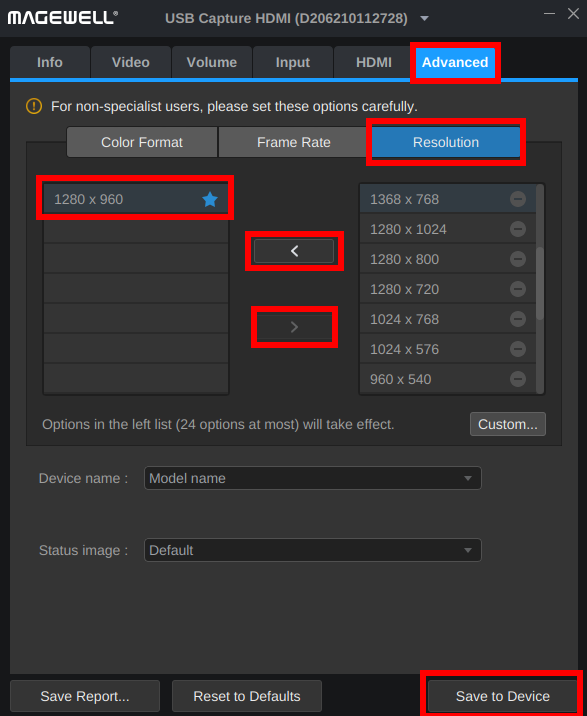
b. Set a Resolution
See below a table of all borescopes we know of and their resolutions
Borescope | Resolution | Aspect Ratio |
Mentor Visual iQ | 1280 × 960 | 4:3 |
Olympus IPLEX NX | 1280 × 720 | 16:9 |
Olympus IPLEX G Lite | 1024 × 768 | 4:3 |
Make sure to click on the star next to your resolution so that it lights up blue.
Disable all other resolutions by moving them out of the active list using the arrow buttons.
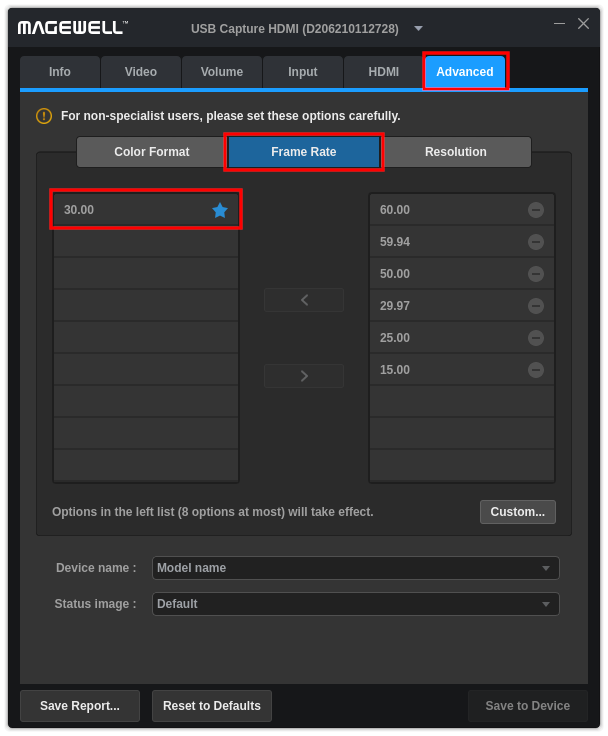
c. Set Frame Rate
Set the frame rate to 30 fps.
This is the recommended rate for compatibility with the Aiir platform.
Click Save to Device (bottom right corner of the software).
Unplug the capture card.
When you reconnect it, your new settings will be automatically applied.
After reconnecting, open the Aiir platform and test the video feed from your borescope. You should now see a stable, cropped feed at the correct resolution and frame rate.