To download all inspection data, move to the Overview screen and click on the ‘Download’ button.
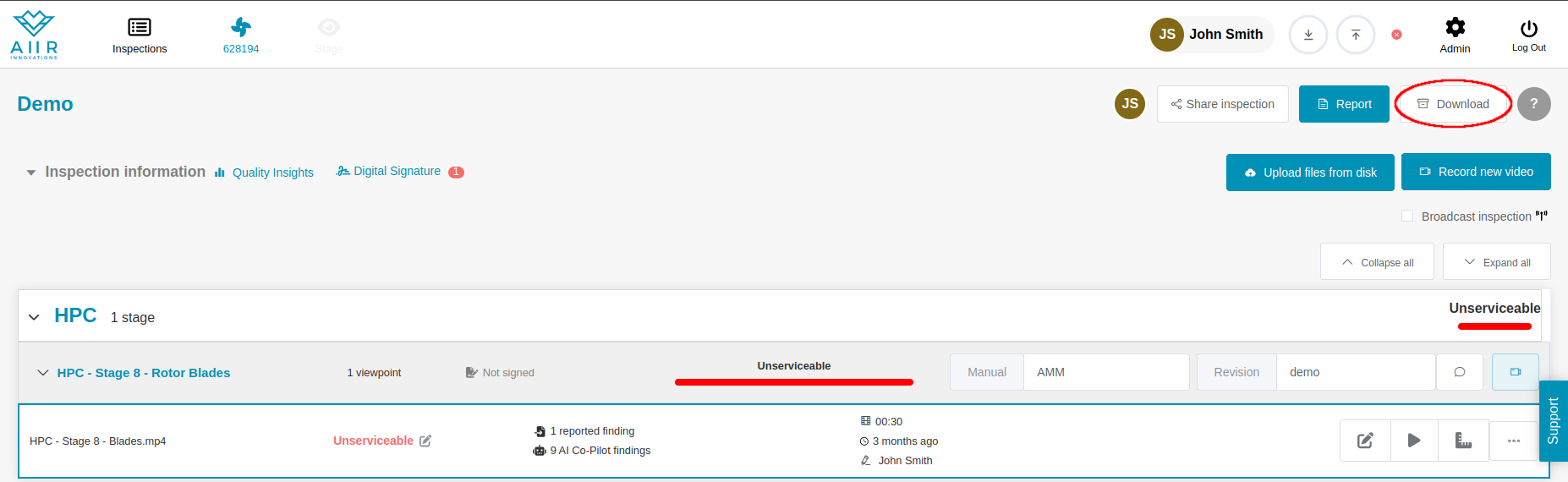
This opens a dialog where you can select which data to download.
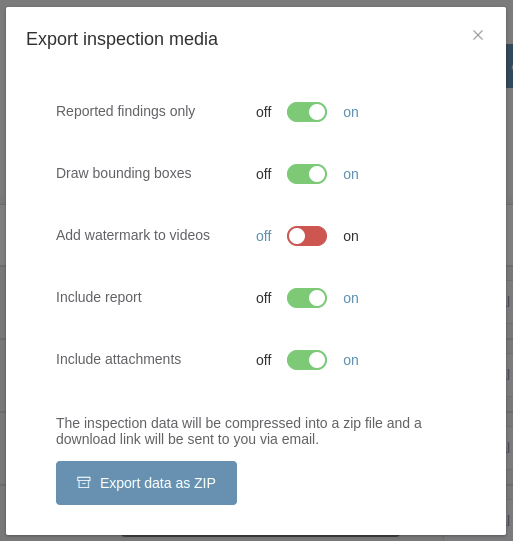
Download options
Reported findings only - When this option is checked the data export only contains images of the reported findings. When this option is not checked, the data export contains images of all created findings, including AI Findings that have not been added to the report.
Draw bounding boxes - When this option is checked, the PDF report images will contain red boxes that were drawn by the inspectors.
Add watermark to videos - Checking this option will add watermarks to each video in the inspection. This will be added to the videos after clicking ‘Export data as ZIP’ and will cause a significant delay in receiving a download link.
Include report - Checking this option will include the PDF report in the data export.
Include attachments - Checking this option will include all inspection attachments in the data export.
Once you have made your selection, the Aiir Platform will collect all the data and create a zip file. Once this process is completed, a download link is sent to your email address.
Click on the link to start downloading your inspection.