You can share the entire inspection data with internal/external stakeholders using the 'Share Inspection' button available on the Inspection overview screen.

Here are the steps to follow to share the data :-
Once you click on 'Share Inspection' icon, a sharing configuration screen will appear (as show below), offering the following options:
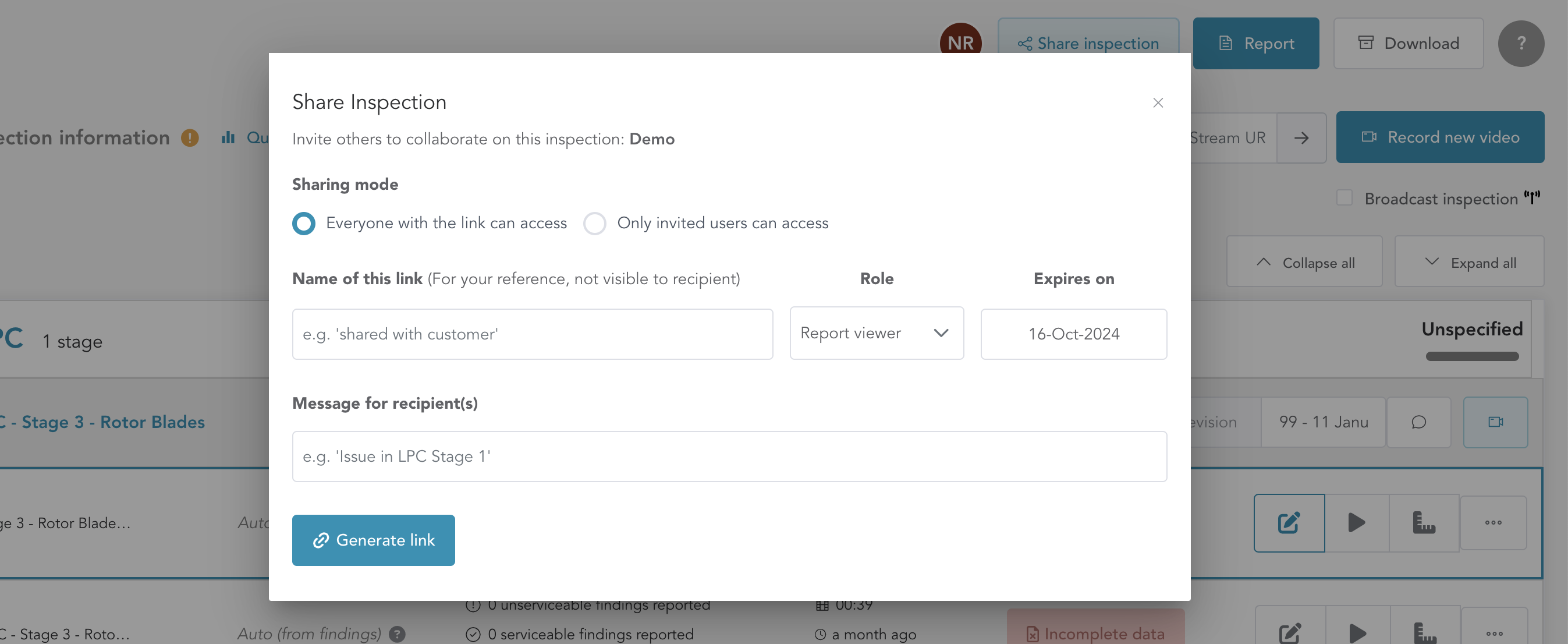
Sharing Mode : Choose whether you want to share limited information, all reported findings, or everything.
Everyone with the Link Can Access - This will enable you to share inspection links with the user without them having to create any account, specially useful when you do not know the email ids of all users whome you would like to share the inspection with or when it will get re-shared further.
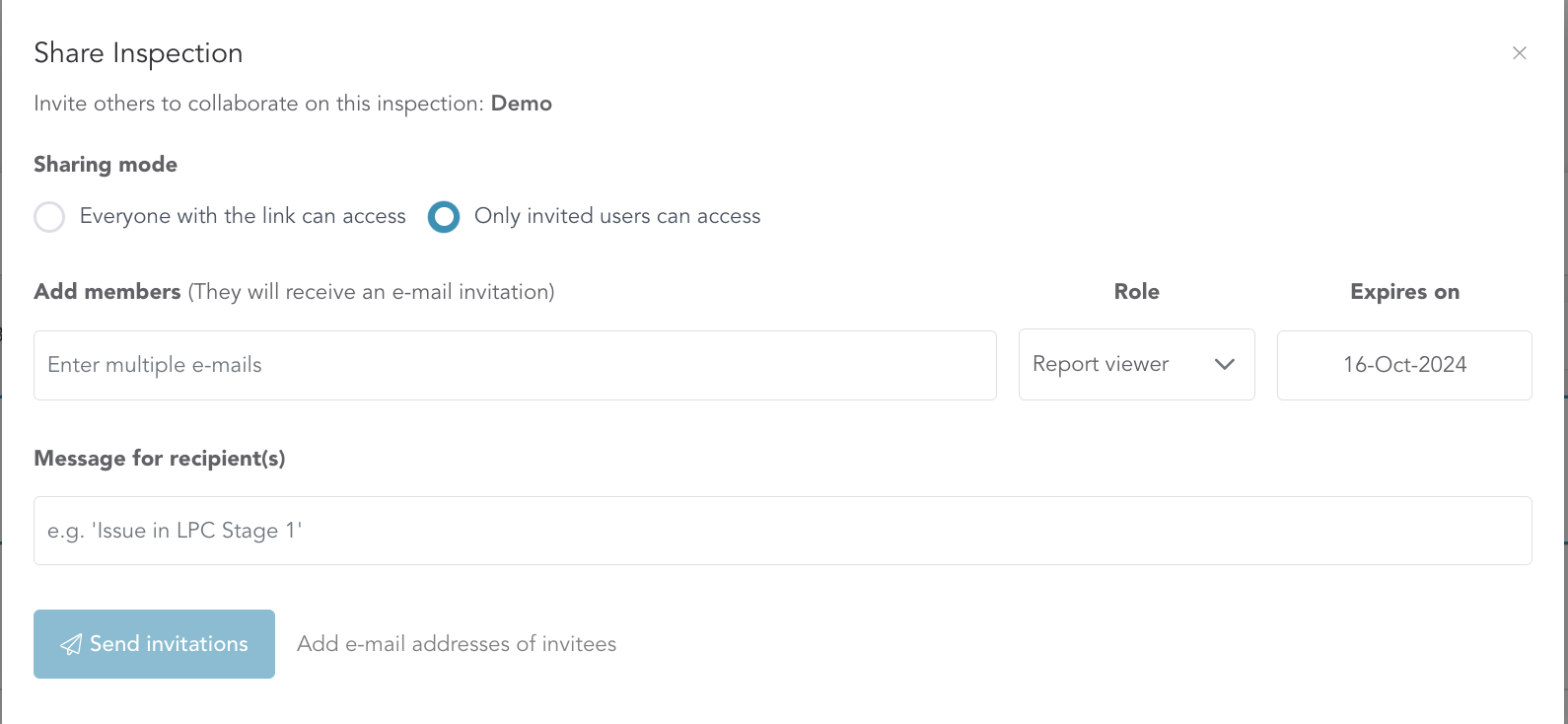
Only Invited Users can access :- This option is more secure, and enables you to enter a valid email id of the person with whome you would like to share the inspection.
Name of the Link: Provide a name for the inspection report, typically the Engine ESN number.
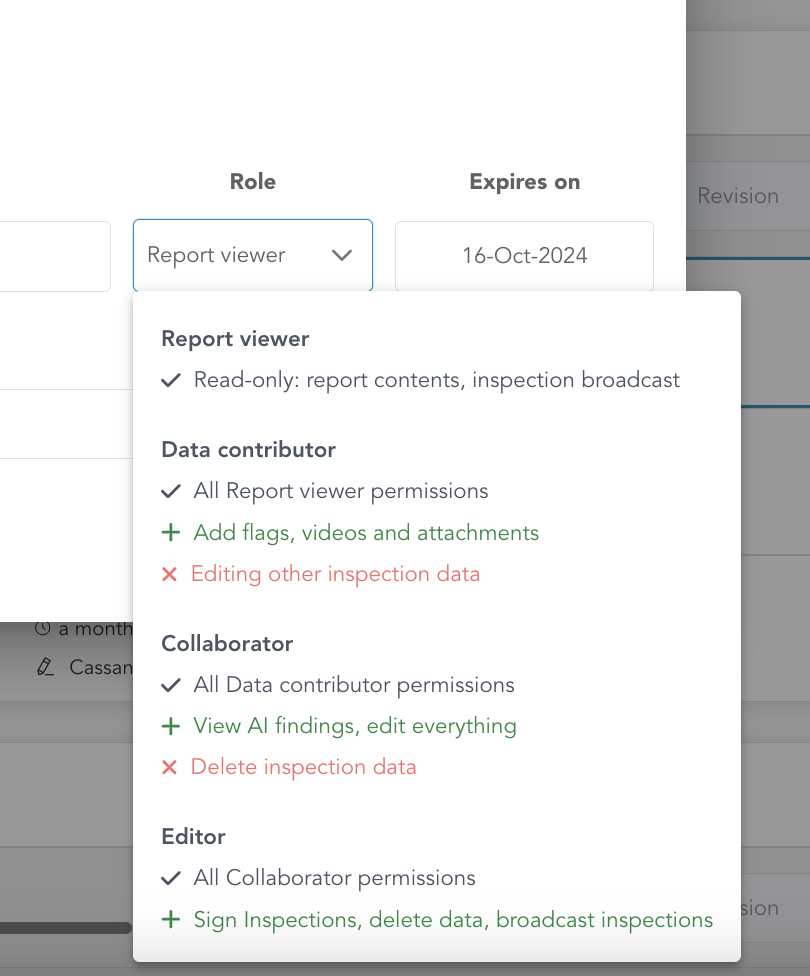
Role: Select the role/permission that you would like to allow for the shared user. You can choose any of the role below that will enable users to access data with the permission associated with that role.
Expires On: You can set the date by which the shared inspection link will expire. The recipient will not be able to access the inspection after this date. You can always come back and extend the date as needed.
Message for Recipients: Add a personalised message or instructions that will be sent to the user in email and/or in application after the user clicks on the shared link.