In addition to processing flags and reporting findings within the 'Reported Findings' tab, you can perform various other essential operations to enhance your inspection workflow and documentation.
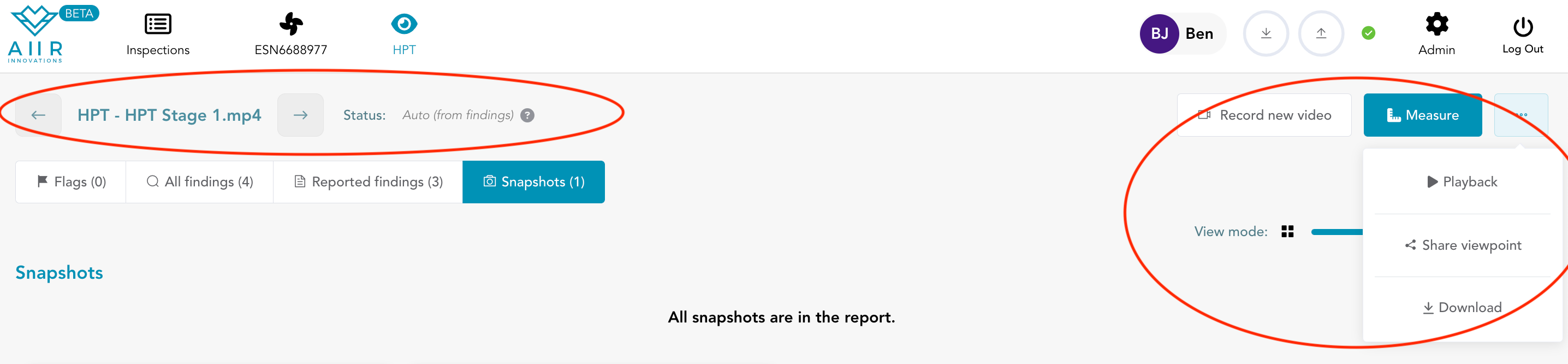
These operations offer flexibility and convenience during the inspection process:
Navigate to Next Stage/Module : Use the left/right arrow to move to next stage/module views.
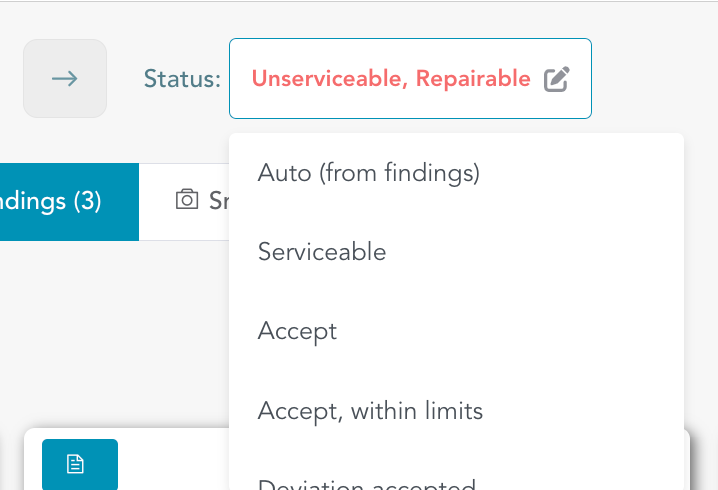
Update Status : The status is auto-selected based on the reported findings, buy you can override the set status and update manually based on your judgement. You can also do the same from Inspection overview mode.
Record New Video: To initiate another recording, you can use the 'Record New Video' button located on the toolbar. This feature enables you to capture additional footage or revisit specific inspection areas, ensuring comprehensive coverage.
Measure: Navigate to the 'Measurement' menu within this tab, where you can add measurements to each finding as needed. This functionality allows you to provide precise details and dimensions related to identified issues, further enhancing the accuracy of your inspection data.
Playback: Utilize the 'Playback' option to replay the inspection video. This feature is particularly useful for generating additional flags or adding more findings during the review process. By revisiting the video, you can ensure that all critical details are captured and documented.
Share Viewpoint: Collaboration is key in the inspection process. With the 'Share Viewpoint' function, you can easily share the current viewpoint, along with all associated finding data and the inspection video, with your colleagues. This sharing capability facilitates collaborative review and decision-making, ensuring that all team members have access to the necessary information.
Download: If you need to retain a local copy of the recorded video, the 'Download' option allows you to download the inspection video to your device. This feature provides you with the flexibility to store or share the video as needed for future reference or analysis.