Measuring the findings and comparing them against specified limits is a crucial aspect of the borescope inspection process. The Aiir platform facilitates this by allowing you to add measurement images for each finding.
You can access the measurement mode using the 'Measurement' icon located on the finding thumbnail view or by clicking the 'Measurement' button on the detailed finding view.
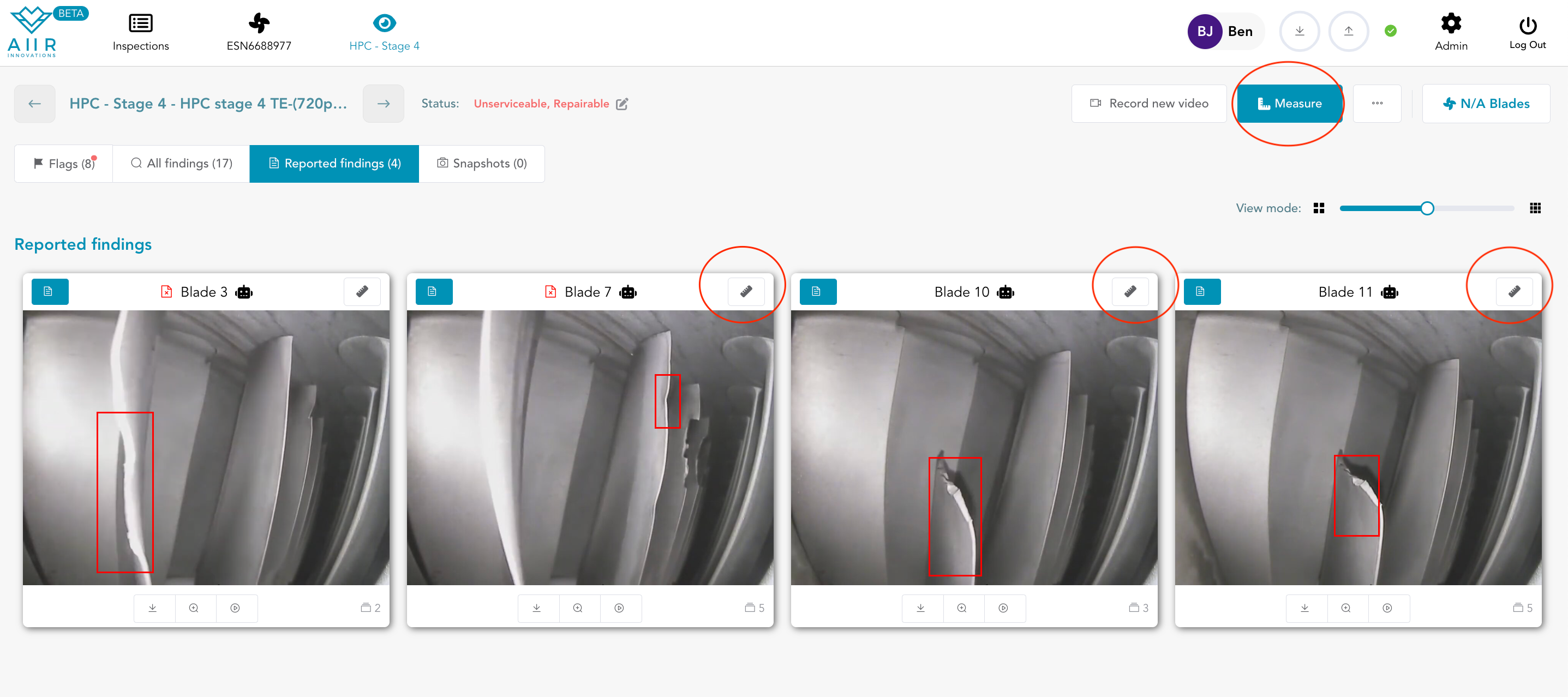
When you click on any of the 'Measurement' icon or button, you will be directed to the measurement mode interface, where each finding is displayed. Here's how to effectively measure a finding:
Select Finding: In the measurement mode, you can choose which finding you want to measure. You have the option to select from the list of reported findings or all findings, which are displayed in a gallery view on the left side of the screen. The selected finding will appear in the center of the screen, while the borescope feed will be displayed on the right.
Adjust Viewing Modes: You have the flexibility to adjust the viewing modes to suit your preference. The available modes can be found on the top left of the screen. You can choose to view the finding and measurement image side by side or opt for one to be larger and the other smaller, depending on your requirements.

Take Measurements: Use the borescope to make precise measurements, the corresponding screen feed will be visible in Aiir application.
Add Measurement Image: Once you have completed the measurements in the borescope feed, click the 'Add Measurement Image' button. This action will capture and associate the measurement data with the selected finding.
Measuring findings and documenting the measurements against specified limits is essential for a comprehensive borescope inspection. The Aiir platform simplifies this process by providing a dedicated measurement mode, ensuring that you can accurately record and report the measurements associated with each finding.