In the 'Reported Findings' tab, you will find a list of findings that have been shortlisted to be included in the BSI report. This section allows you to review these shortlists, add more details before you are ready to generate the BSI report. To effectively process these findings, follow these steps:
Review All Findings : Within the 'Reported Findings' tab, you can view the final shortlisted findings in a thumbnail format. Similar to the 'All Findings' tab, you can adjust the thumbnail size using the 'View mode' options. Each thumbnail in this tab offers additional options such as 'Add to report' and 'Add measurement' for the finding. You can also download, zoom in, or play any thumbnail using the provided 'Download,' 'Zoom', and 'Playback' icons located at the bottom of each thumbnail.
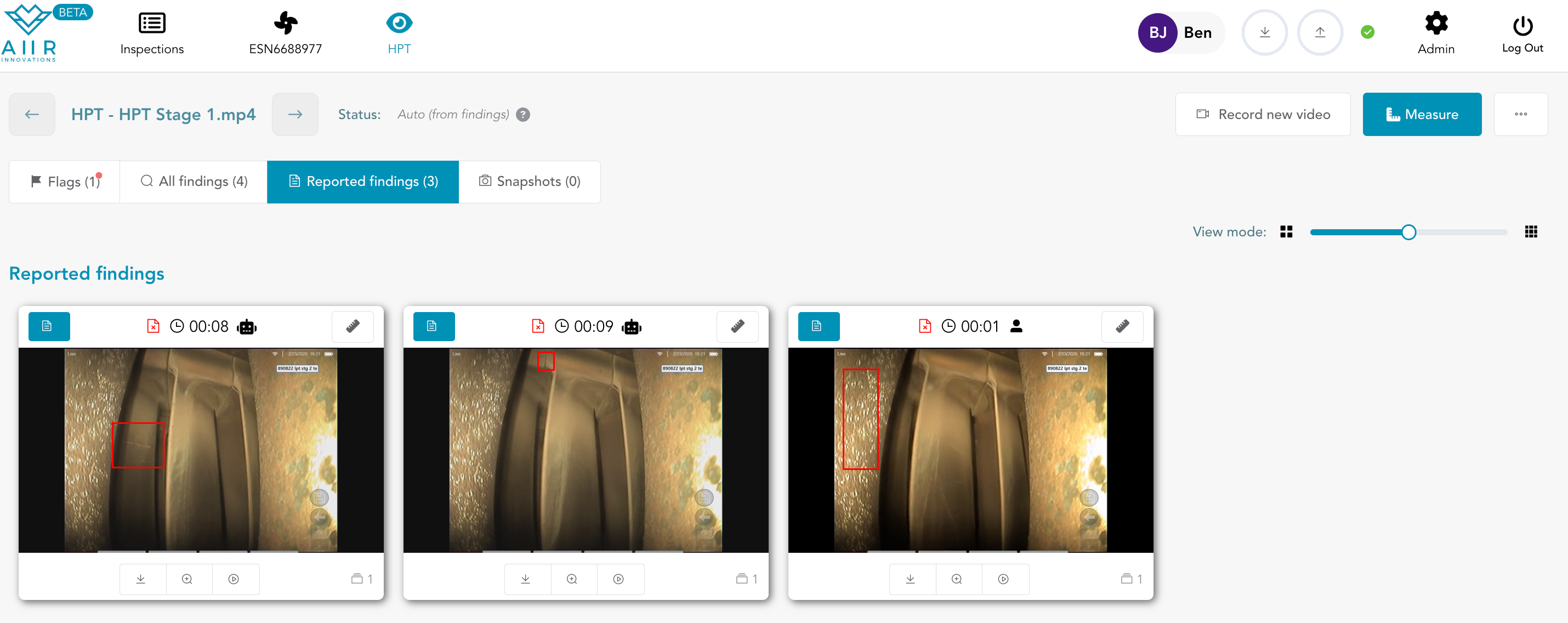
View Finding: To closely examine a specific finding, begin by clicking on its thumbnail. This action will open the finding in detailed mode. In this view, the finding image is displayed on the left side, accompanied by a bounding box outlining the area of interest. On the right side, a form is provided with fields where you can input additional details about the finding.
Finding in Report: If a finding is already included in the report and you wish to remove it, you can click the 'Finding in Report' button again. This action will remove the finding from the report, and it will no longer be considered a reported finding. Additionally, you can provide further information about the finding by filling out the available fields as specified in the manual.
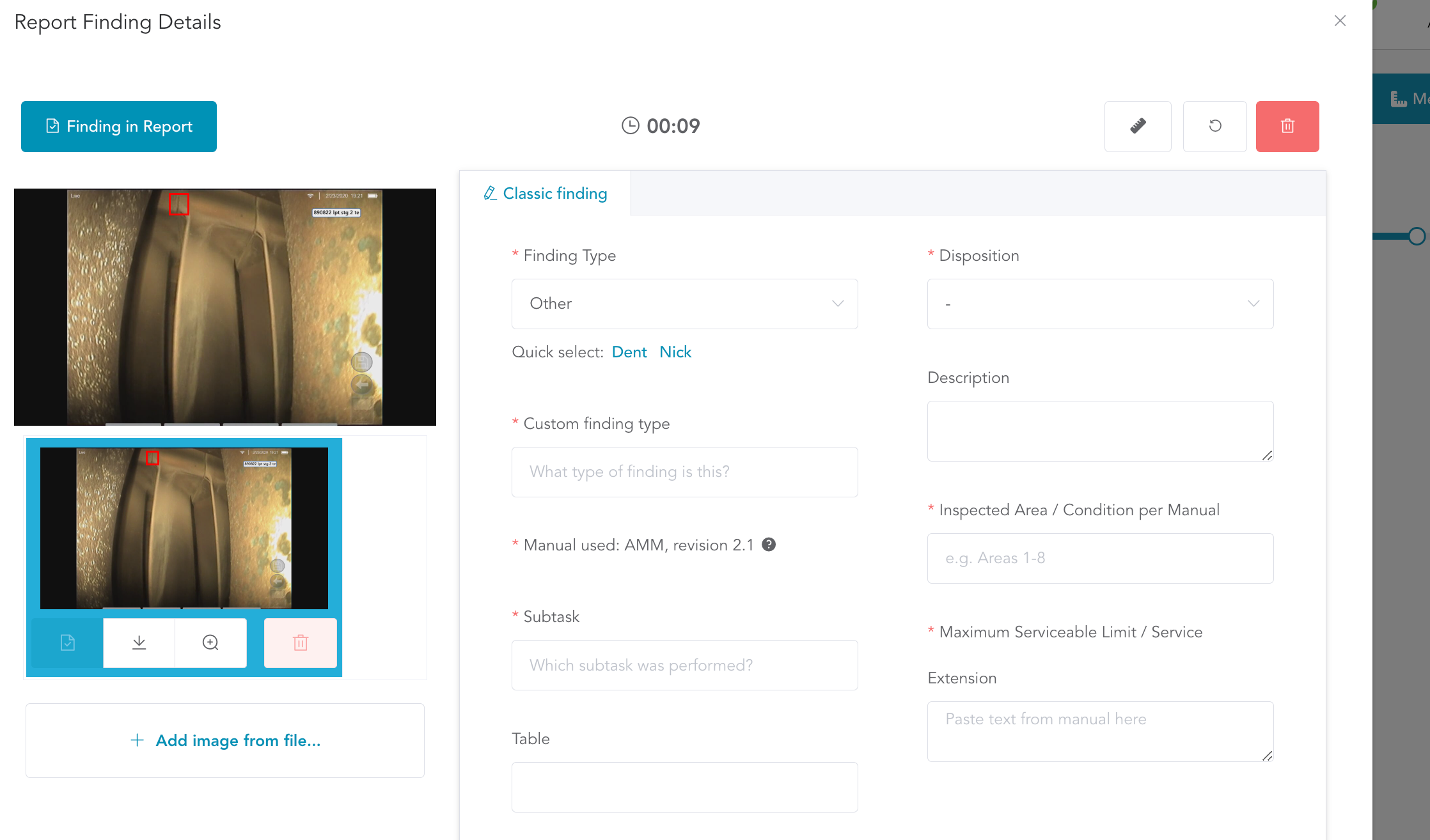
Add Image from File: If you need to attach additional images related to a particular finding, you can use the 'Add Image from file' button. This feature allows you to supplement the finding with relevant images for reference.
Reset Form: To clear the details entered for a specific finding and start anew, utilize the 'Reset Form' button. This function provides a fresh slate for entering information related to that finding.
Delete Finding: In cases where a finding is deemed irrelevant or no longer necessary for the report, you have the option to delete it. Simply click the 'Delete Finding' button to remove the finding from the list.