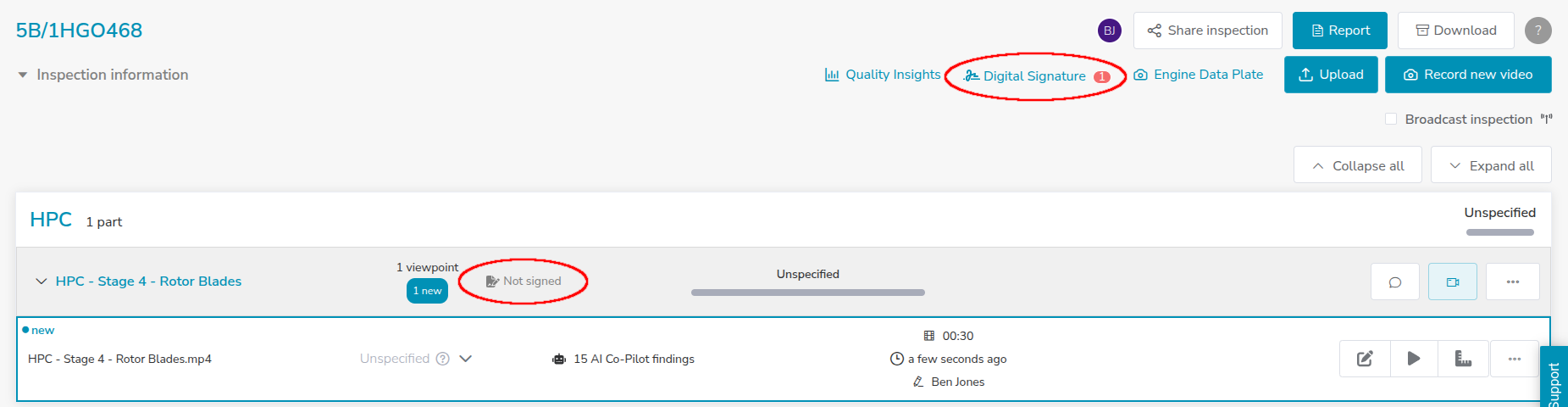
While leveraging Aiir AI Co-pilot during a live inspection is the most efficient way, it can also be used to review recorded inspection footage for surfacing any missed findings. Here's how to do it:
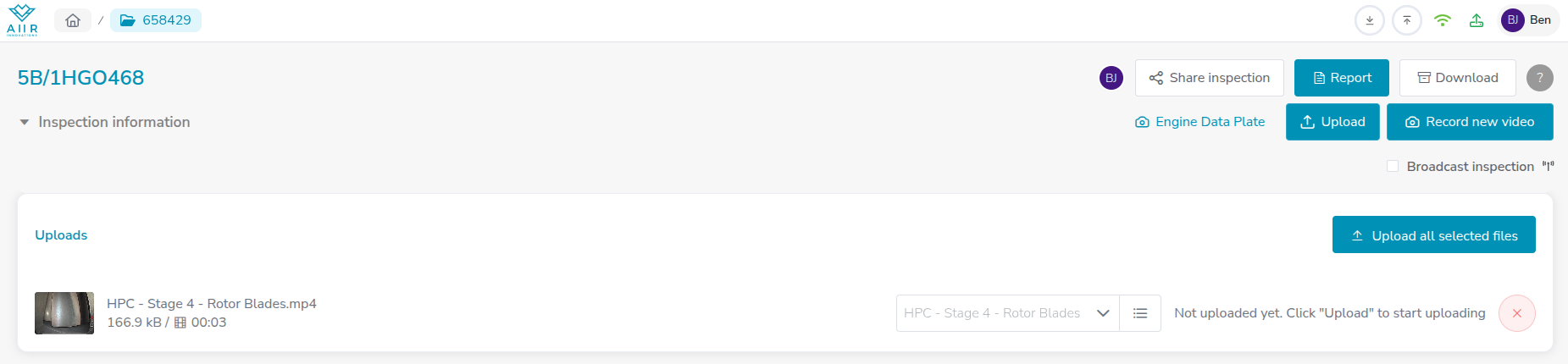
Click on 'Upload ': Begin by clicking on the 'Upload' button within the Aiir application.

Select Inspection Video: A file selection window will appear, allowing you to select the inspection video file you want to upload. Choose the relevant video file from your local storage.
Auto-Detection of Module & Stage: Aiir AI Co-pilot will attempt to auto-detect the module and stage based on the file name of the inspection video. If it successfully detects them, you can proceed to the next step.
If not, you will need to manually select the Module and Stage from the file name that corresponds to the inspection conducted in the video.
Triggering the Upload: After confirming the Module and Stage information, click ‘Start Uploading.' The upload process will begin, and the video will be processed by Aiir AI Co-pilot. Please note that only after you select a stage+part, the ‘Start Uploading’ button becomes active.
Review Findings: Aiir AI Co-Pilot will start reviewing the inspection footage. During this process, findings may be generated and shared for your review. You can already start reviewing the findings while the Aiir AI Co-pilot is processing the video, or you can wait until the process is complete. Once the processing is complete, the findings will appear in the Inspection Overview under the corresponding Module and Stage names. You can access and review these findings for further action or analysis.