If you connected the borescope successfully and can see your feed in the Aiir Platform, you can leverage Aiir's AI Co-pilot to assist you during an inspection. Follow these steps:
Initiate Live Recording: Click on the "Record New Video" button located at the top right of the page. Alternatively, you can click to record a prefilled stage by clicking on the recording icon in the stage.
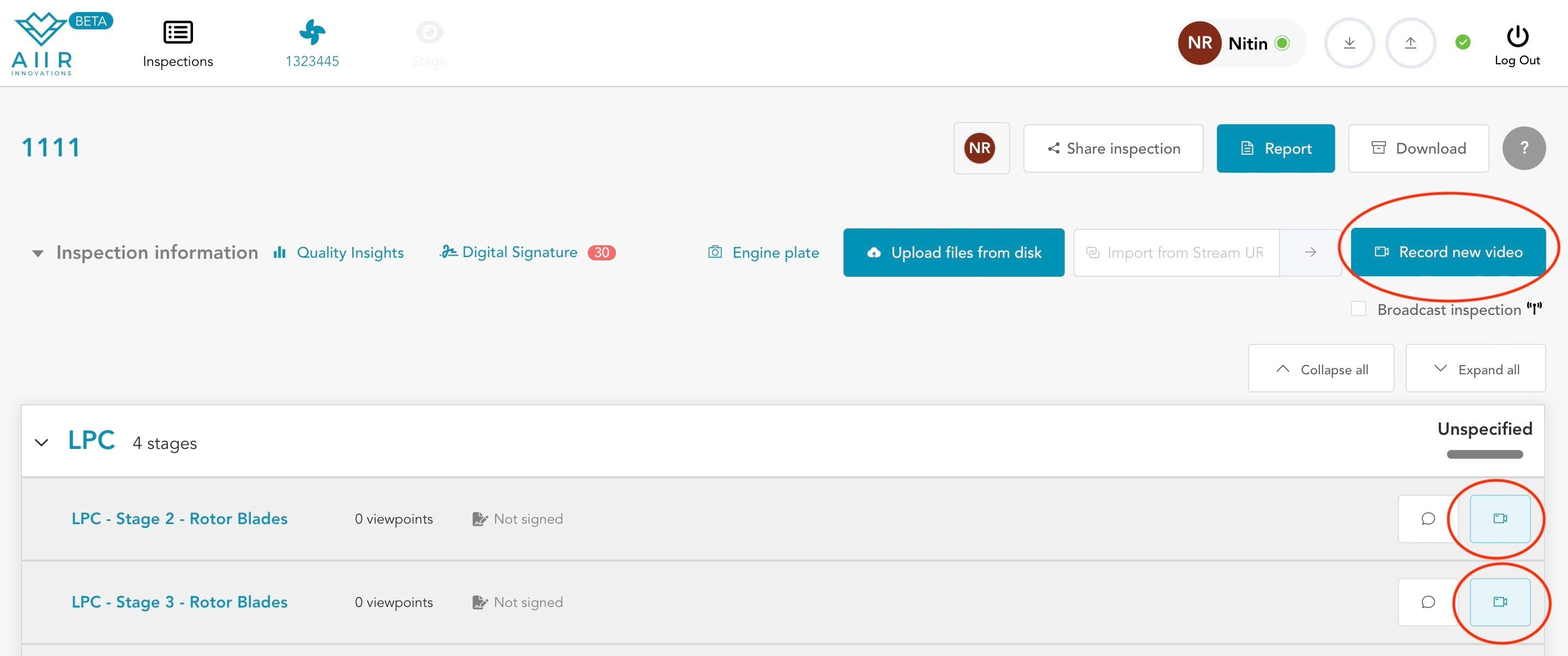
Select Module-Stage-Viewpoint: Once selected, the borescope video feed will appear alongside the Module, Stage, and Viewpoint selection screen. Choose the relevant module, stage, and viewpoint to ensure the AI Co-Pilot can analyze the footage accurately.
If you started recording via the prefilled stage, this information will already be filled in for you.
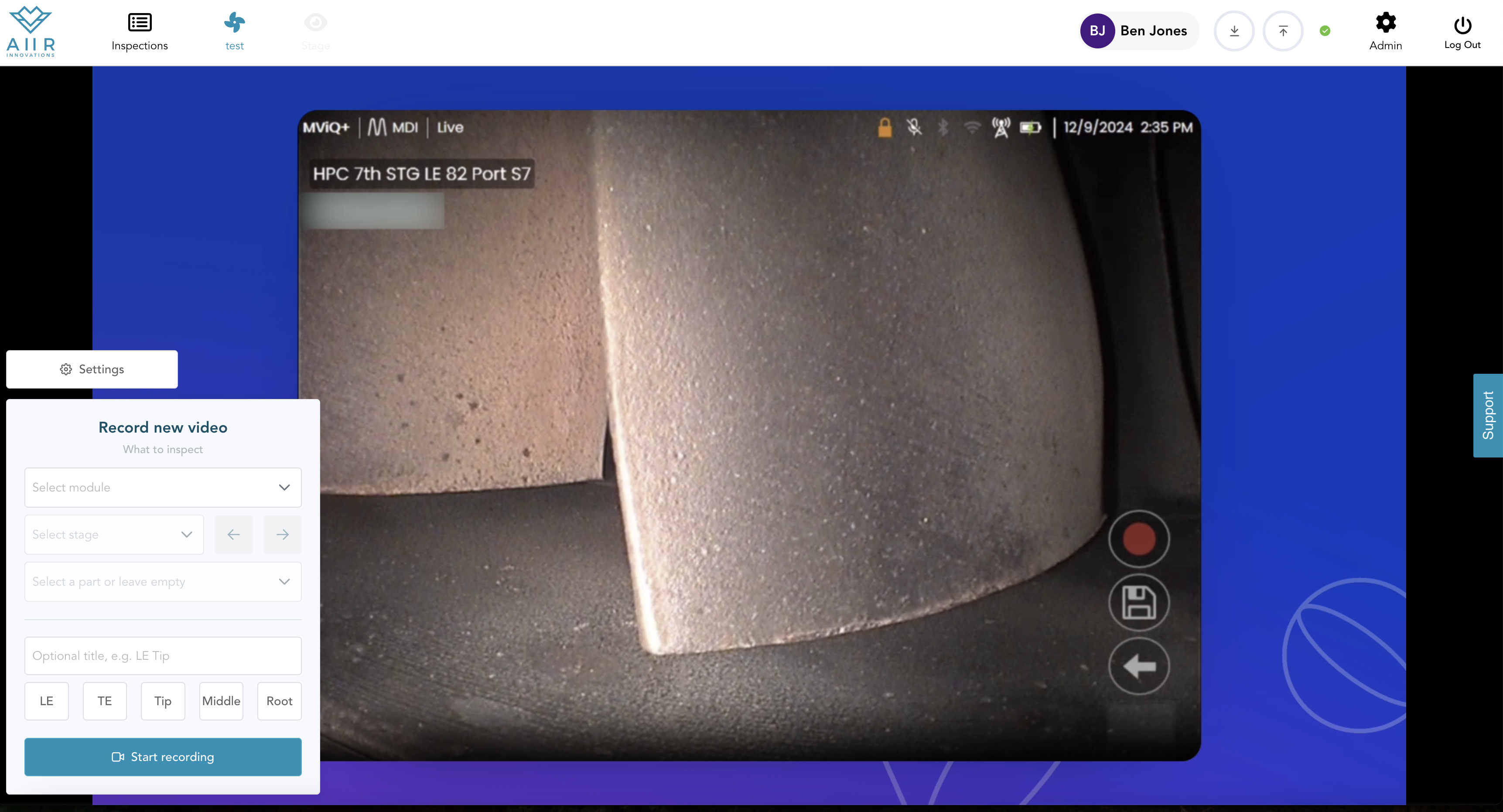
Add custom title : If case you do not see the Module/Stage/Part you are looking for and want to add a custom title, you can start typing in any of the input fields. This can also be used when performing Service Bulletins or Airworthiness Directives.
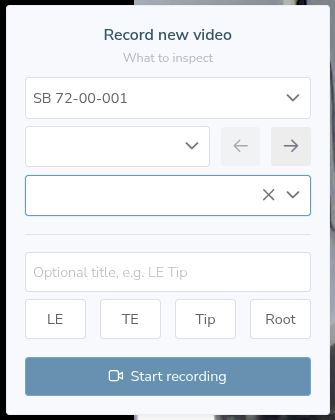
Start Recording: Click on the 'Start Recording' button to begin the inspection. You will see the borescope footage in the Aiir application screen. As soon as the recording is started, the recording window is maximized to fullscreen mode.
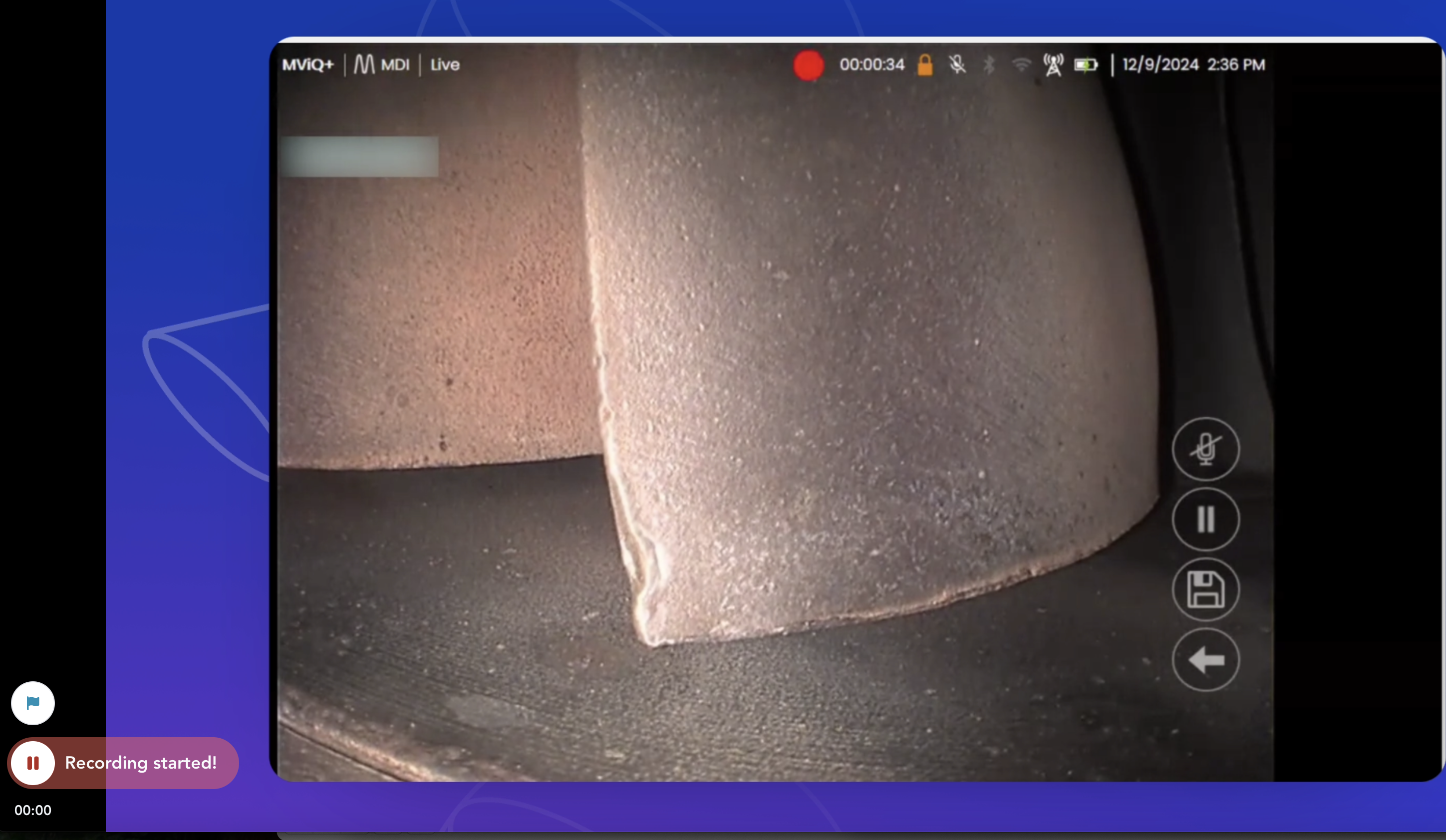
Perform Recording Operations : Once connected and recording, you can: Create flags, Pause/resume recording, add measurement images and Stop/Save the recorded video.
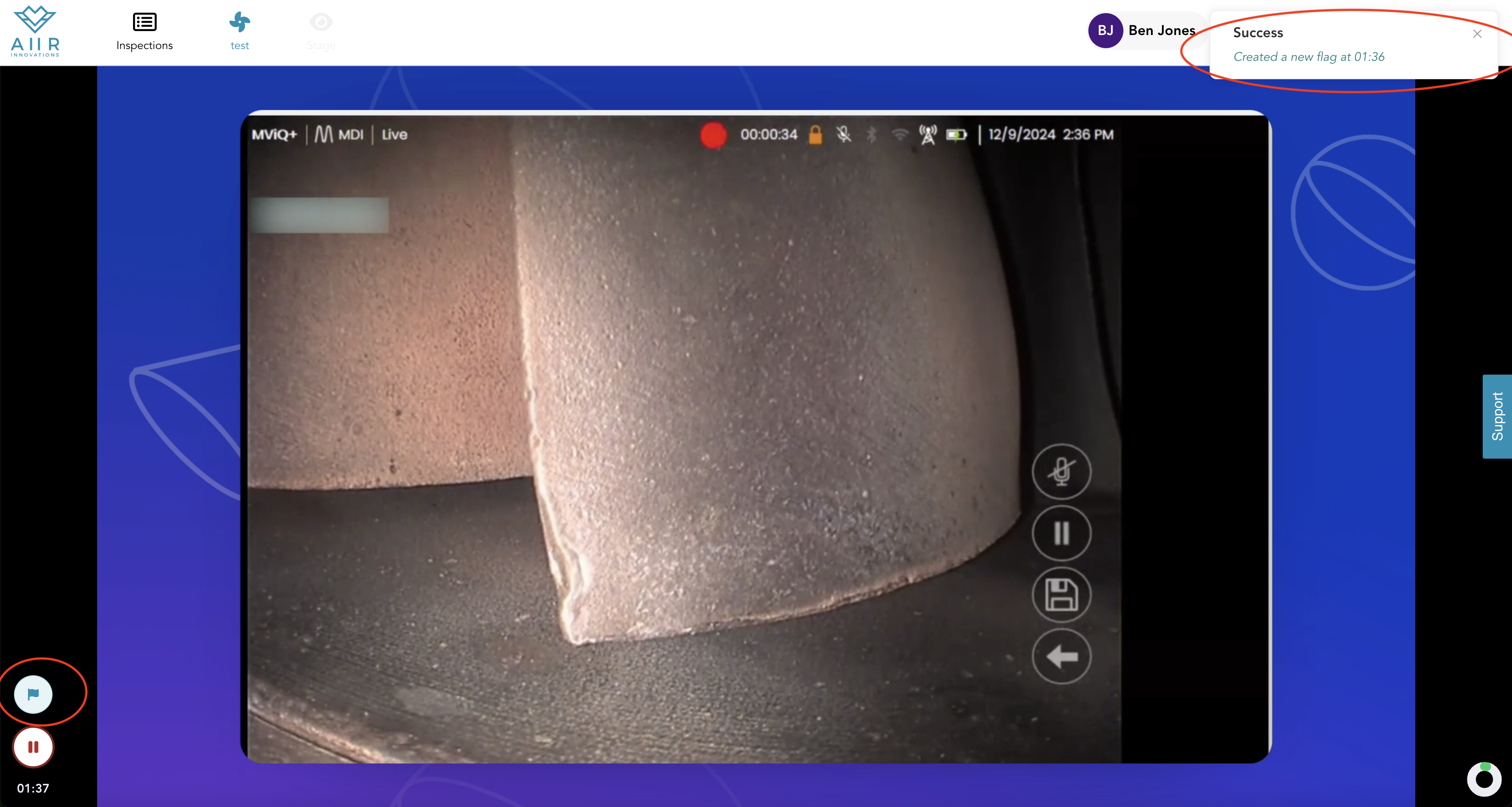
Flag creation: If you spot a defect or an area for review:
Click the “Flag” icon or use the remote buttons to capture an image of the relevant video frame.
• The AI Co-Pilot automatically provides additional frames from a few seconds before and after to ensure accuracy.
• You can also create flags later from the recorded video playback.
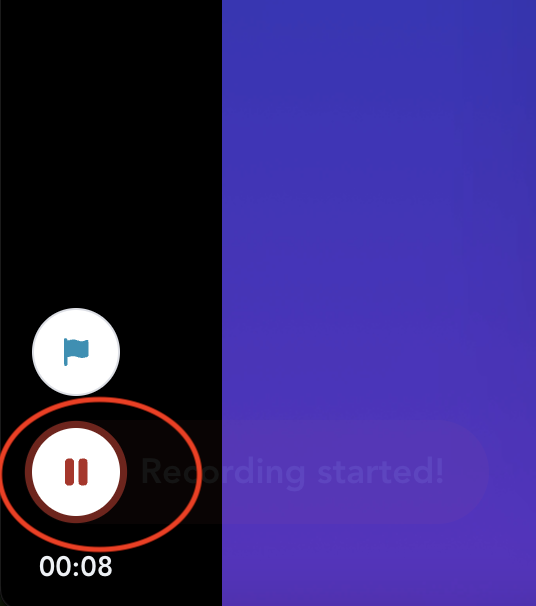
Pause Recording: After completing a full rotation or if you need to take measurements, click the “Pause Recording” icon.
Add Measurements :- Once paused, you’ll see the “Take Measurement” option.
This lets you add a measurement image to the most recent flag without having to navigate back to it.
This is particularly useful when inspecting the hot section or other static parts, where returning to a defect can be difficult.
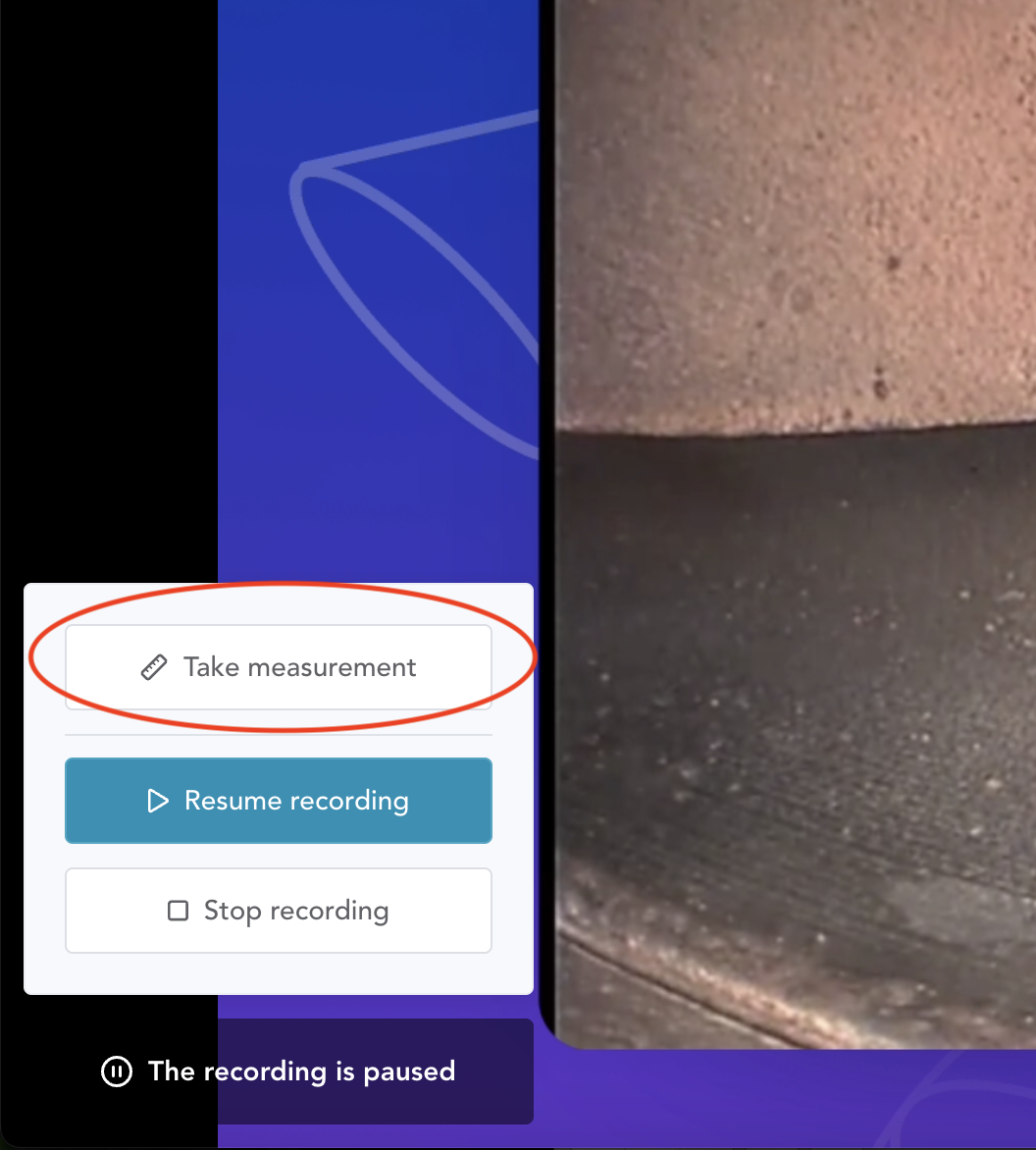
Resume Recording: If you’ve only paused to add a measurement or adjust the probe, click “Resume Recording” to continue your inspection.
Stop Recording : When the inspection is complete, hit pause again, then click “Stop Recording” to finalize the footage.
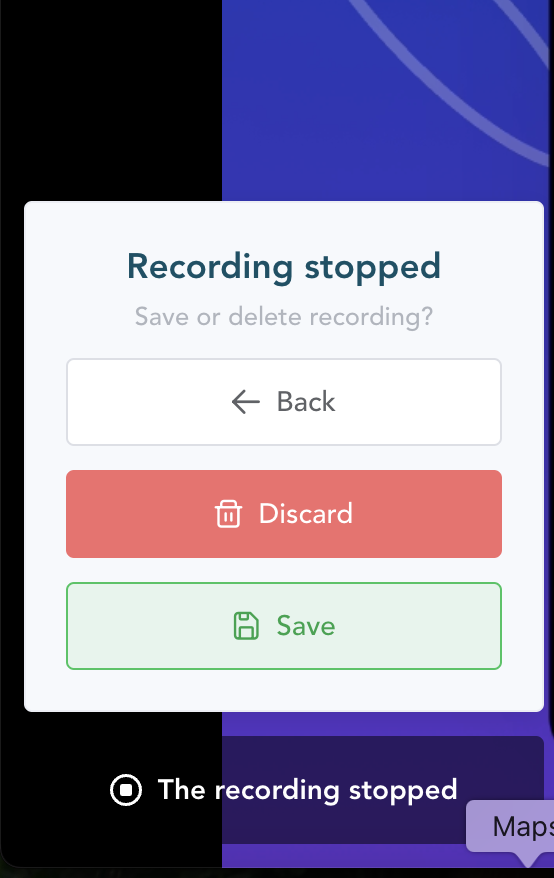
Save Recording : Click “Save Recording” to store the footage.
Discard Recording : If you need to redo the recording, click “Discard ” to start over.
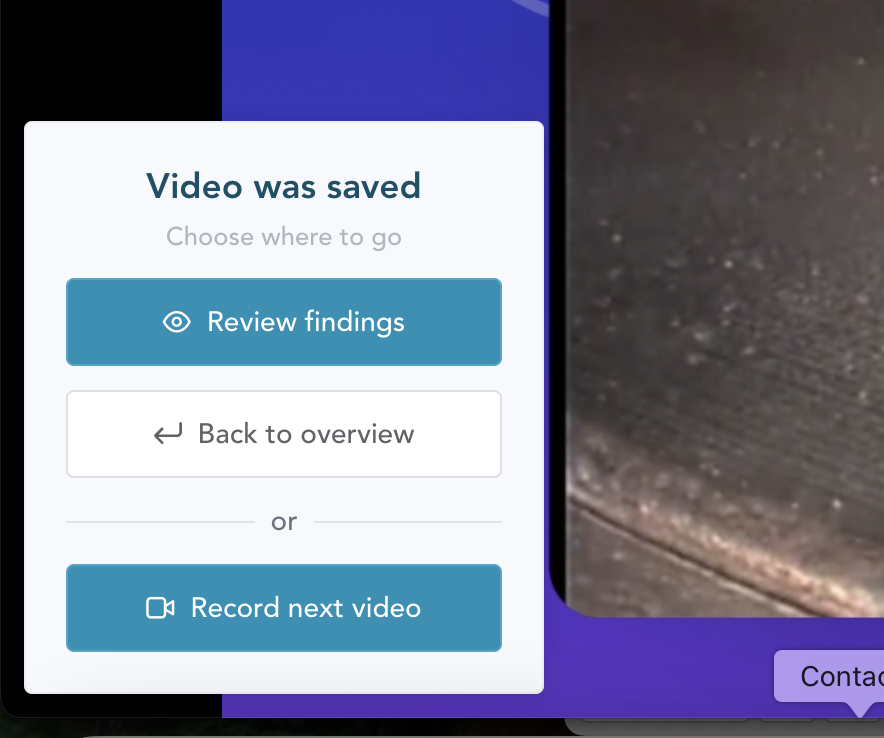
Review Findings : Once the recording is complete, you can:
Review your findings/flags immediately using ‘Review Findings’ button.
Click “Back to Overview” to return to the inspection page.
Click “Record Next Video” to continue inspecting other parts of the engine.
Repeat the same steps for remaining stages/modules